

Template URL Integration
The simplest way to use DS Templates — your users create templates on our platform and paste the generated URL into your CMS. No API development required.
How It Works
The URL integration requires no development. Your end-users work directly on the DS Templates platform and use the generated content URL in your CMS.
| Feature | Details |
|---|---|
| Template library | 600+ professionally designed templates across 40+ integrations |
| Editor | Browser-based visual editor — no software installation required |
| Output | Each saved template generates a unique URL that renders the template |
| Updates | Editing a template automatically updates the URL — no need to re-paste |
Step 1 — Log In
Users log in to the DS Templates platform with their account credentials.
https://content.ds-templates.com/
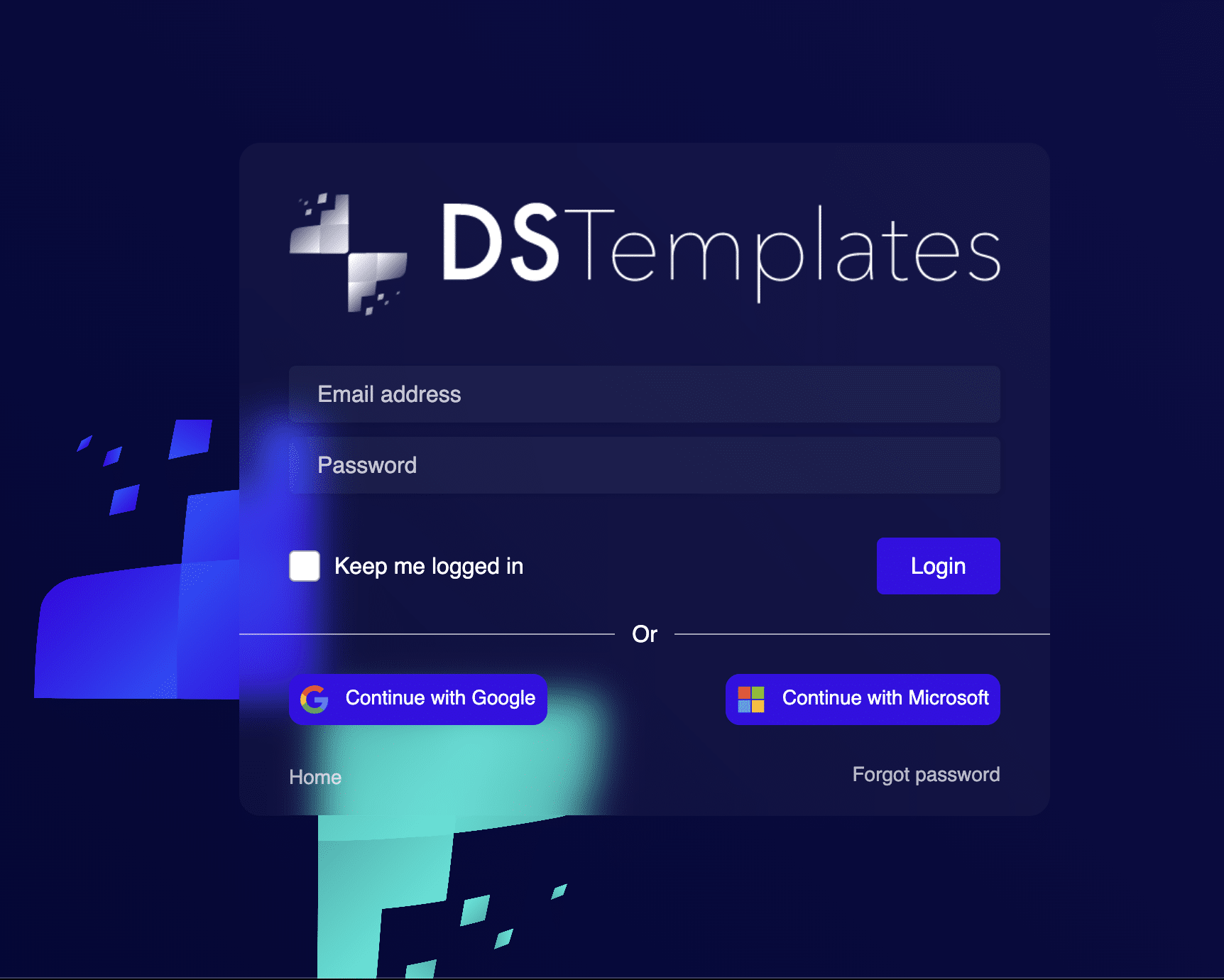
Each user receives their own account with access to the full template library. Accounts can be provisioned by DS Templates or by the CMS partner depending on the arrangement.
Step 2 — Choose a Template
After logging in, users browse the template library and select a template to work with.
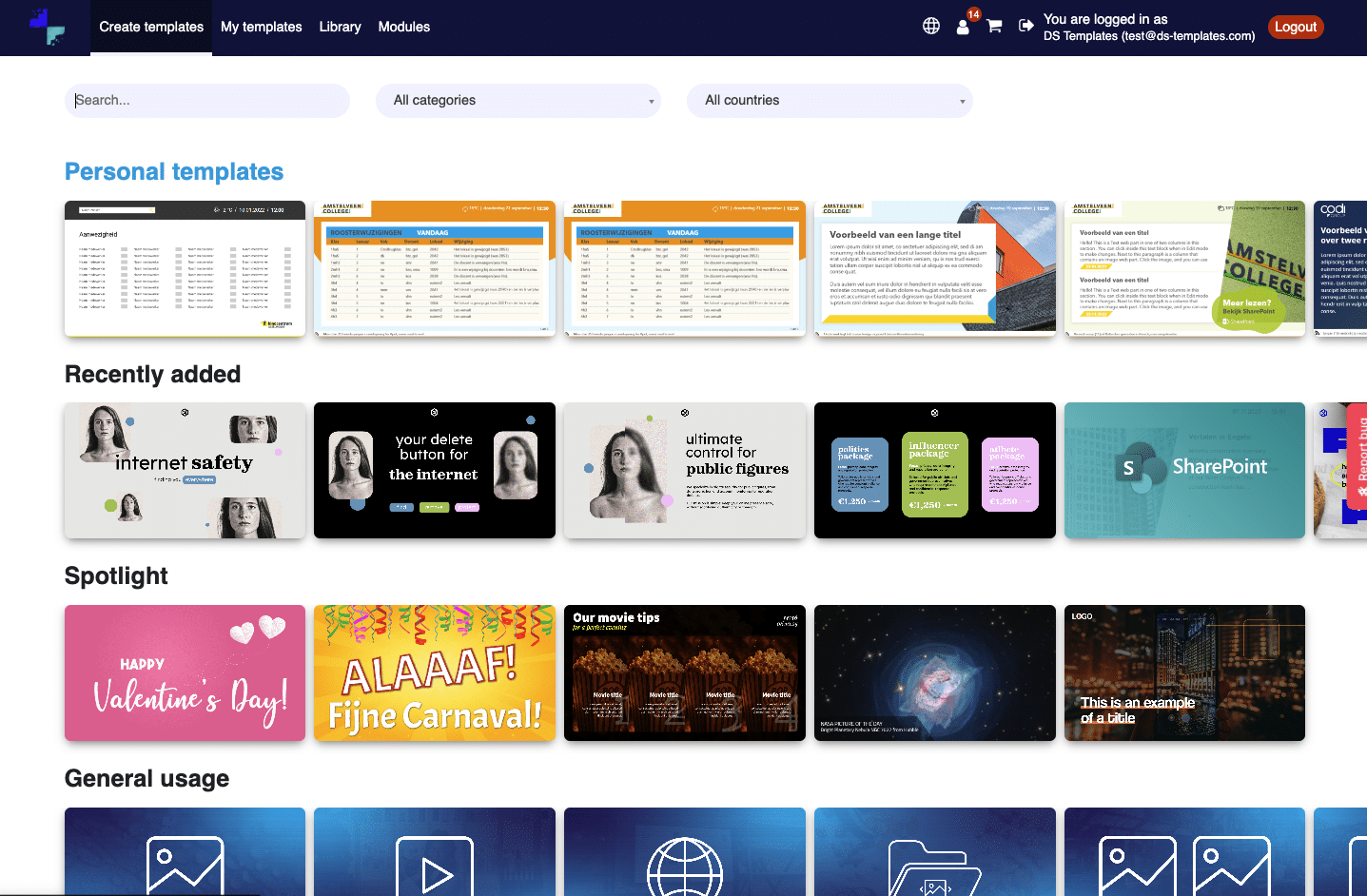
- Templates are organised by category (e.g., Information, Promotion, Social Media, Meeting Room)
- Custom templates — we offer bespoke templates built to your brand guidelines or custom integrations. When available, custom templates always appear at the top of the library
- Approximately 70% of templates support all aspect ratios (
16:9,9:16,4:3,1:1), and we are continuously expanding this coverage - Hover to preview — hovering over a template shows a live preview of the design
- Save as favourite — click the heart icon to mark a template as favourite; favourites appear at the top of the library
- Click the + button on a template to open it directly in the editor
- Filter by category, aspect ratio, or use the search function to find the right template
Step 3 — Edit & Save
The visual editor allows users to customise every element of the template. The editor is split into two panels: input fields on the left, live preview on the right.
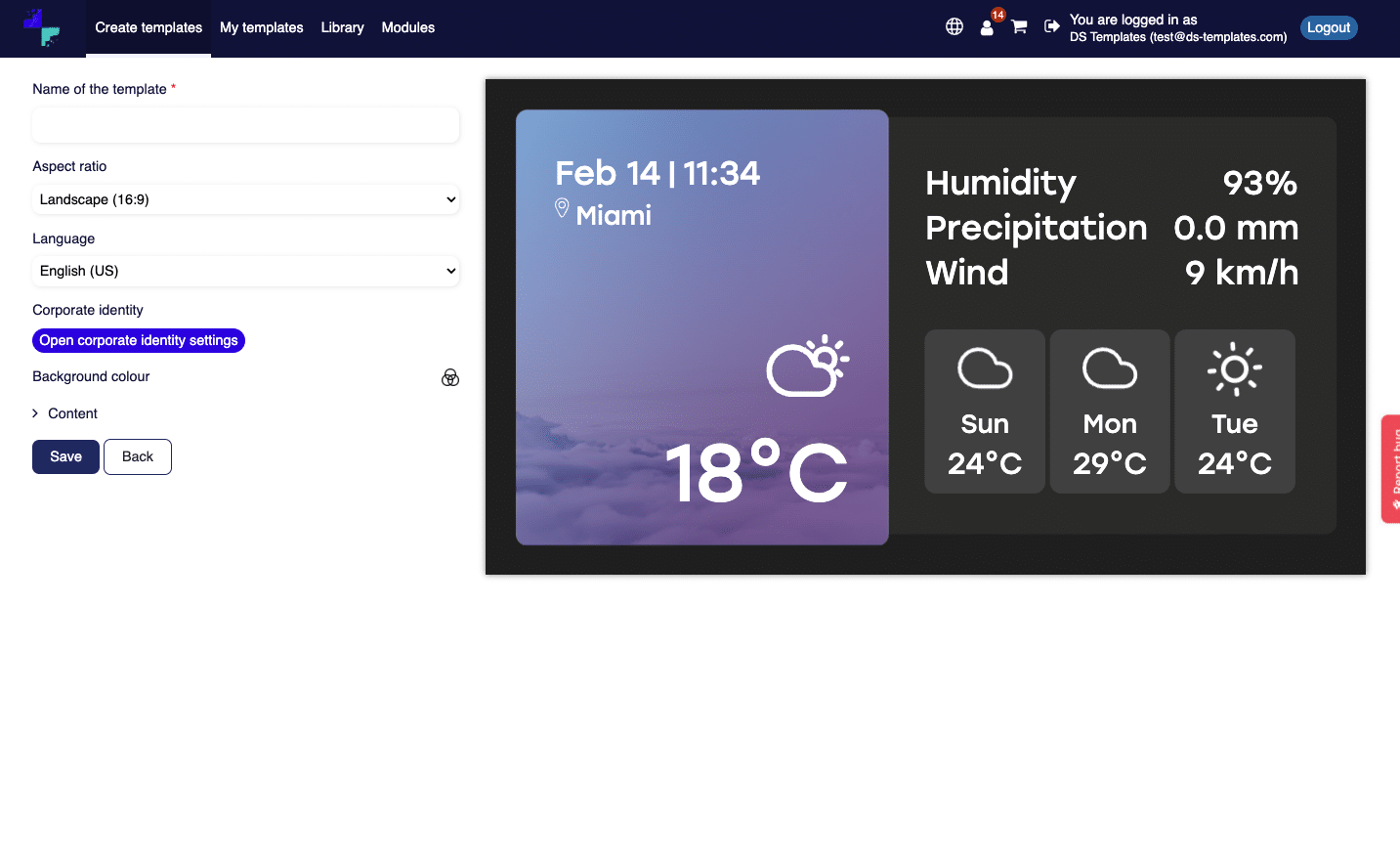
- Input fields — all customisable elements are listed on the left side. Expand each section to adjust text, images, colours, and settings
- Live preview — the right panel shows exactly how the template will look, updated in real-time as you make changes
- Configure dynamic content sources such as RSS feeds, weather data, social media feeds, and more
- Pixabay integration — browse and insert free stock photos directly from the editor
- DS Templates AI — generate images, write text, or optimise existing copy using built-in AI tools
- Set the template duration and language
- Saved templates appear in "My Templates" for future editing
Editing an existing template updates the content at the same URL. There is no need to re-copy or re-paste the URL in your CMS after making changes.
Step 4 — Use the URL
After saving, your template appears in the "My Templates" overview. Each template has a unique content URL that you can copy and paste into your CMS.
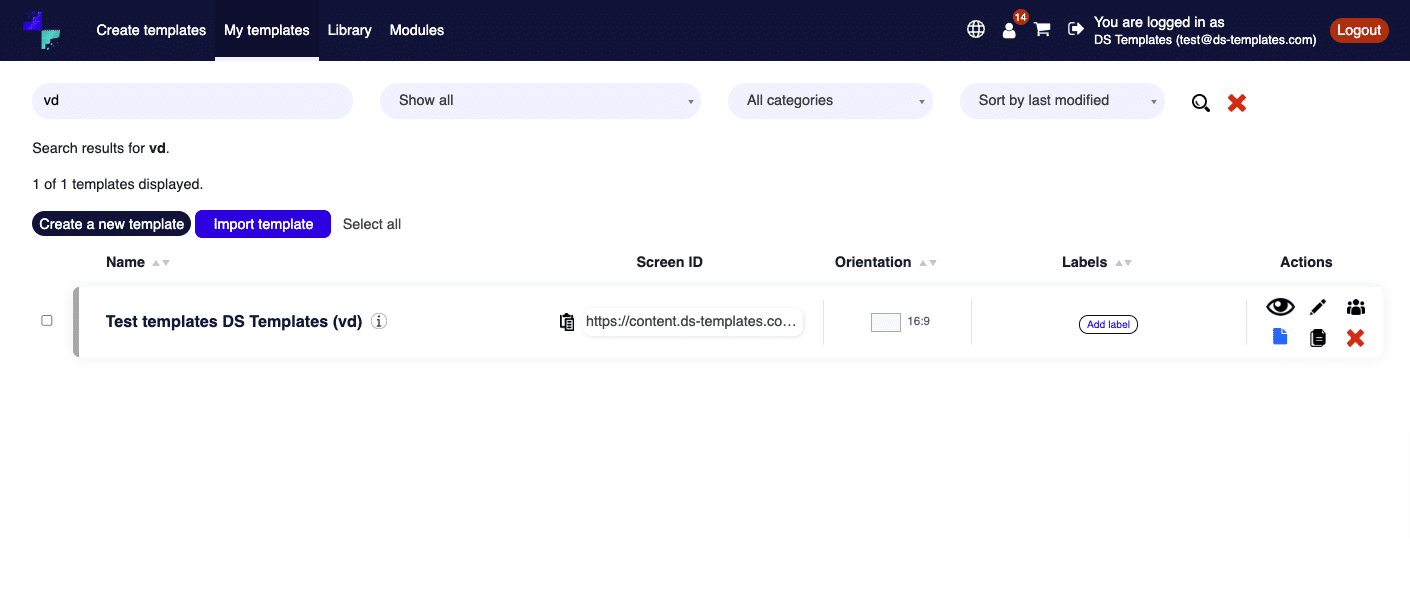
Click the copy icon next to a template to copy its URL to your clipboard, then paste it into your CMS.
https://content.ds-templates.com/template/{template_id}This URL renders the template directly and can be used in any CMS that supports URL-based content (iframe, web URL input, or direct link).
Modules
Modules are deep integrations within the DS Templates platform. While standard integrations connect directly to external data, modules offer advanced automation — minimising manual work by managing data centrally so templates update automatically.
For example, with the Birthdays module you only need to maintain a list of employees. The system automatically displays birthday greetings on the right day — no daily scheduling required.
Available modules
| Category | Module | Description |
|---|---|---|
| HR & Internal Comms | Birthdays & Anniversaries | Automatic birthday and anniversary greetings |
| Attendance & Visitor | Real-time presence display with touchscreen support | |
| Internal News | Publish news articles that display automatically | |
| Welcome Messages | Personalised visitor greetings | |
| Poll Management | Interactive polls and voting on screens | |
| Facility | Meeting Rooms | Real-time room availability |
| Calamity | Emergency notifications to all screens | |
| Queue Management | Waiting queue display and management | |
| Microsoft & Google | Microsoft | Power BI, SharePoint, Outlook, Teams |
| Google Calendar and Analytics | ||
| Sector-specific | Education | School schedules (Zermelo, WebUntis, Xedule) |
| Menu Board | Centralised product and price management | |
| Real Estate | Property listings with API connections | |
| SolarEdge | Solar panel performance data |
For a full overview of all integrations and modules, see the Integrations & Modules page.
How to identify module templates
- In the template library: filter by the "Module templates" category to see all templates that require a module connection
- In the editor: scroll to the bottom of the left panel to see which module the template is linked to, with a direct link to manage the module data
URL Format
Reference for the URL types available.
| Type | Format | Usage | Status |
|---|---|---|---|
| Template | /template/{id} | Full renderable template — use this in your CMS playout | Available |
| Sequence | /sequence/{id} | Multi-template playlist with transition animations | Coming soon |
Sequences allow users to combine multiple templates into a single playlist with configurable transition animations. Sequences will be available with the launch of DS Templates 2.0 in April 2026. The sequence URL works identically to a template URL — simply paste it into your CMS.
Embedding Options
The template URL can be used in various ways depending on your CMS capabilities.
Option 1: Direct URL
Most digital signage CMS platforms accept a web URL as a content source. Simply paste the template URL into the URL/web content field in your CMS.
Option 2: Iframe embed
If your CMS supports HTML content, embed the template using an iframe:
<iframe
    src="https://content.ds-templates.com/template/{template_id}"
    style="width:1920px;height:1080px;border:none"
    frameborder="0"
    scrolling="no"
></iframe>
Set the iframe dimensions to match the template's aspect ratio for the best display. Common sizes: 1920x1080 (16:9), 1080x1920 (9:16), 1024x768 (4:3), 1080x1080 (1:1).
White-label
All DS Templates URLs can be served from your own domain. Your end-users will never see the DS Templates brand.
| Default | Your domain |
|---|---|
https://content.ds-templates.com/... | https://templates.yourcms.com/... |
White-label is configured by pointing a CNAME record to our servers. We handle SSL certificates automatically. Contact us to set up your custom domain.
Frequently Asked Questions
What happens when a user edits a saved template?
The content at the existing URL is updated automatically. There is no need to generate a new URL or update anything in your CMS.
Can multiple users share the same account?
Each user should have their own account to maintain separate "My Templates" libraries. Contact us to set up multi-user accounts for your organisation.
What aspect ratios are supported?
Templates are available in 16:9, 9:16, 4:3, and 1:1. The aspect ratio is set per template.
Is an internet connection required for playback?
Yes, the template URL must be accessible at playback time. The content is rendered live in the browser. For offline scenarios, discuss caching options with our team.
Can I use the API integration and URL integration together?
Yes. Some partners use the API integration for their main platform and offer the URL method as a simpler alternative for smaller customers. See the API Integration Guide for details.