

Microsoft Module
Connect Power BI dashboards, SharePoint content, Outlook calendars, and meeting room availability to your digital signage screens.
What does this module do?
The Microsoft module connects your Microsoft 365 environment to DS Templates. It provides integrations with Power BI, SharePoint, Outlook Calendar (meeting rooms), and Outlook Mailbox.
Power BI
Display Power BI reports and dashboards on your digital signage screens.
How to connect
- Go to Modules → Microsoft Module
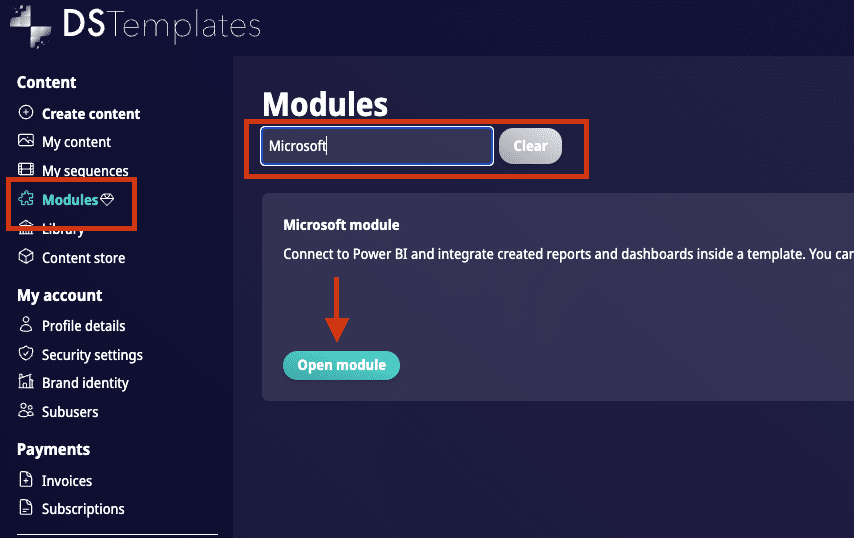
- Click "Make a new connection with Power BI"
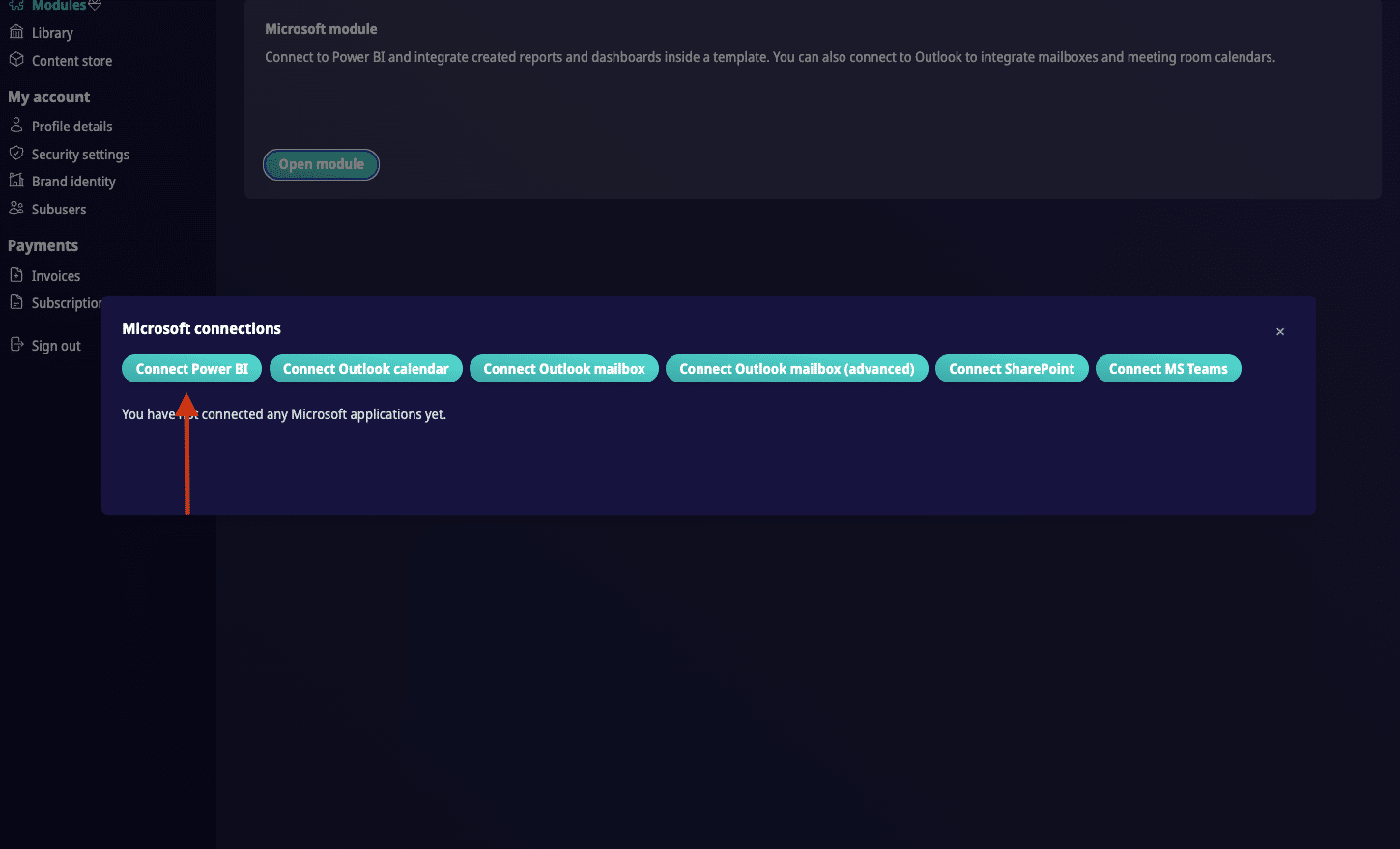
- Log in with your Microsoft credentials and grant access
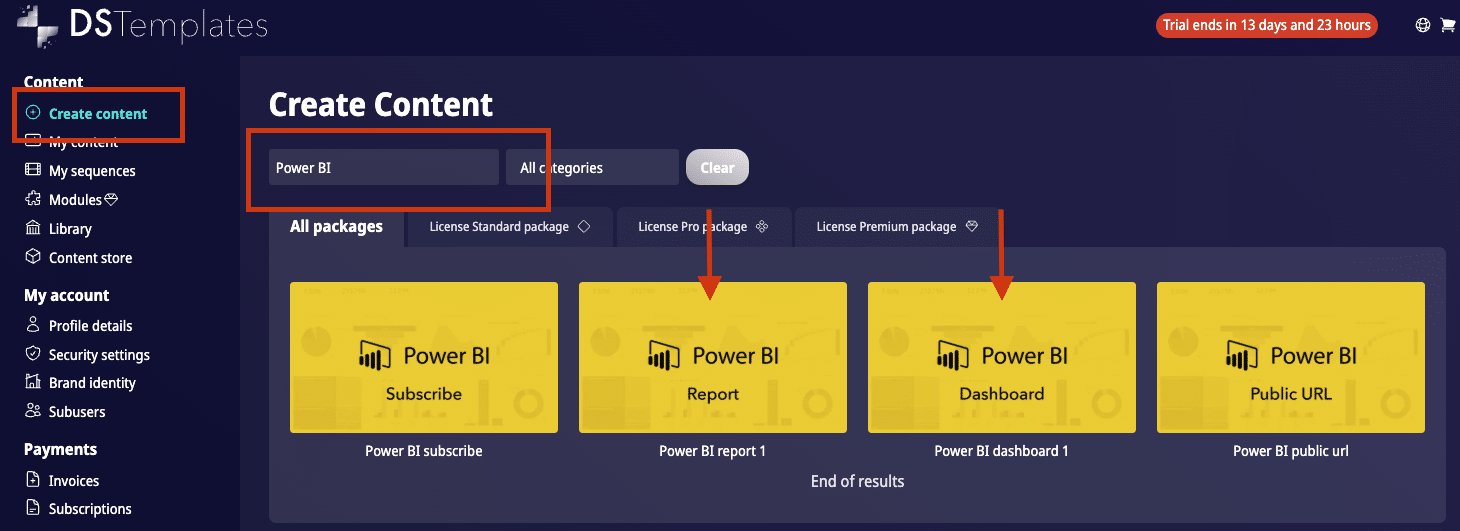
- Go to Create content, search for "Power BI", and select a report or dashboard template
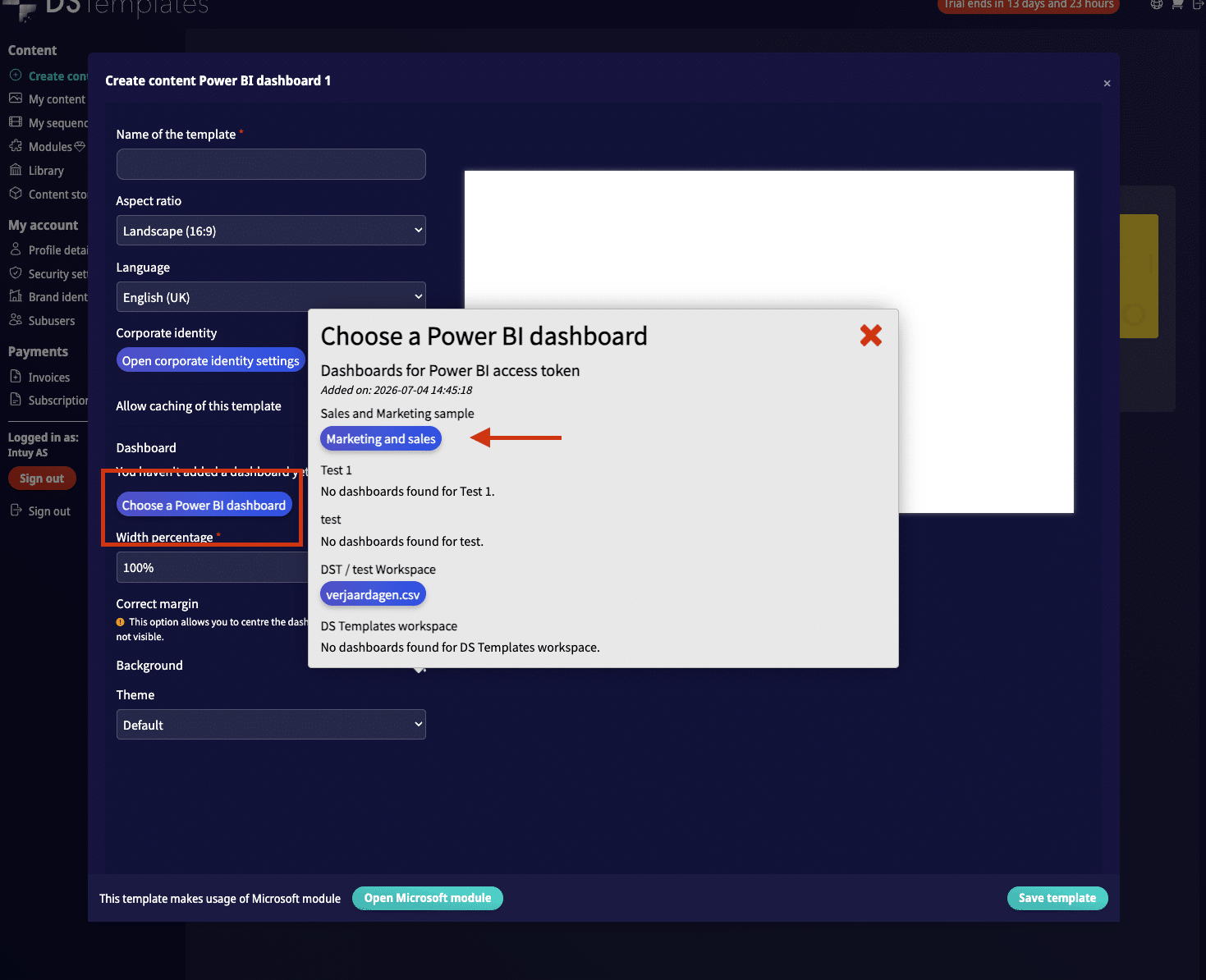
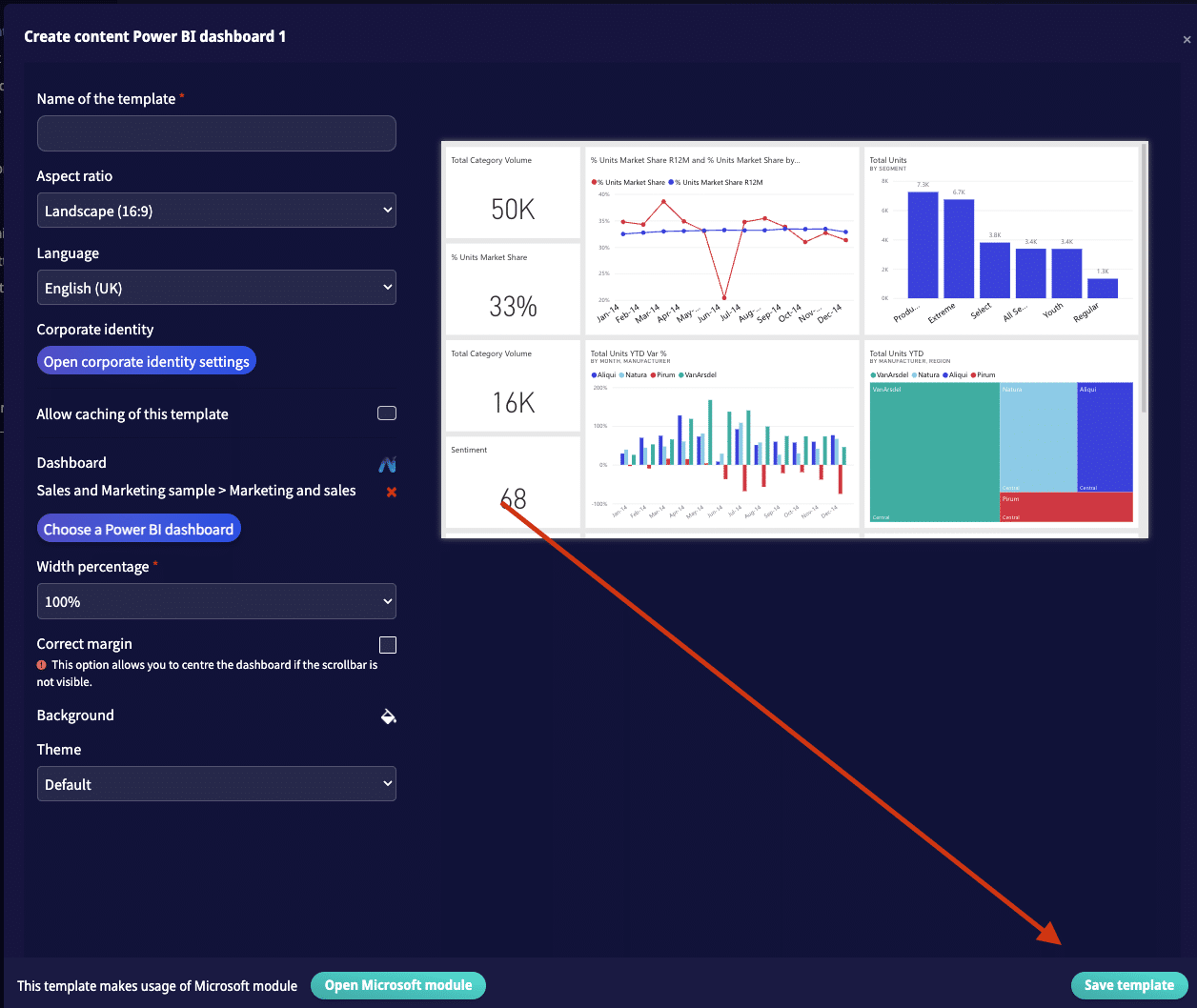
- In the editor, click "Choose Power BI dashboard/report" and select the one you want to embed
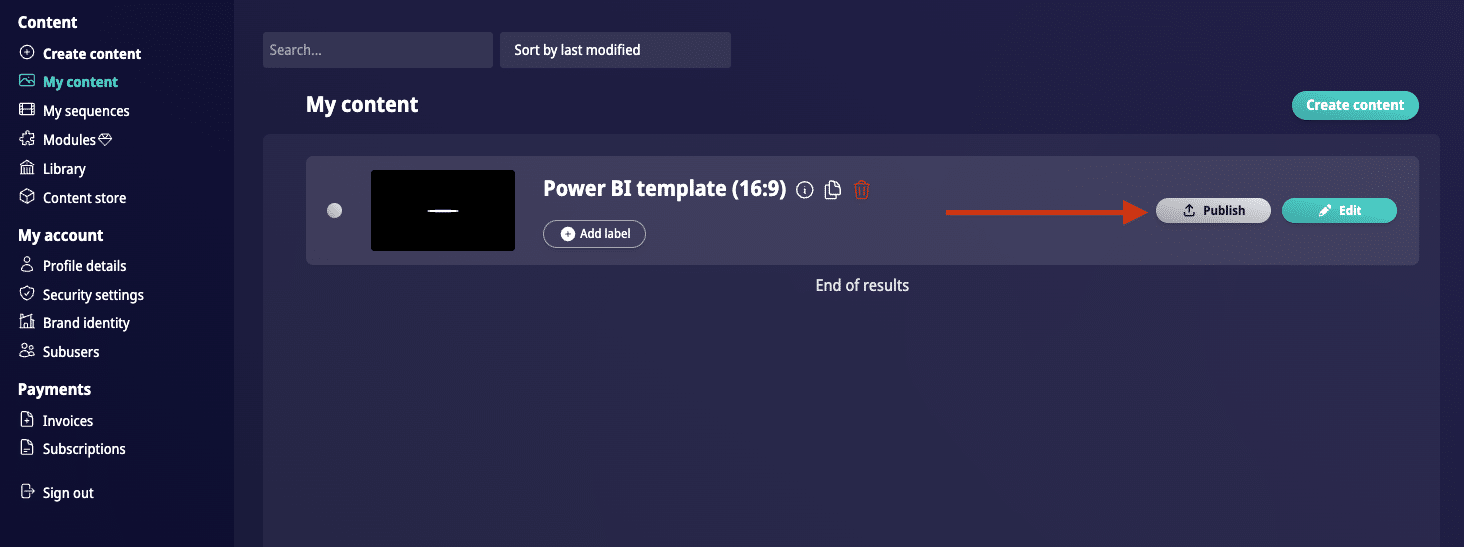
- Save and publish to your screens
Caching
DS Templates offers two caching options for Power BI to reduce Embedded Capacity costs:
- On demand — takes a screenshot of the report when requested
- Scheduled — takes screenshots at set intervals
By displaying a screenshot instead of the live embed, the Power BI/Azure server is not loaded.
Power BI Embedded requires Azure capacity. DS Templates supports this integration but is not responsible for Microsoft Power BI costs. We recommend consulting a Power BI specialist before getting started with Embedded capacity.
Troubleshooting: 404 error
If you see a 404 error on your Power BI dashboard, the Embedded capacity likely needs to be reassigned:
- Open Power BI → Workspaces
- Hover over the workspace and click Workspace settings
- Go to the License / Premium tab
- Ensure the correct Embedded capacity is selected
- Click Save
Troubleshooting: 500 error
Check the following Azure AD settings:
- Tenant settings → Developer settings → "Allow service principals to use Power BI Apps" must be enabled
- Admin portal → Tenant settings → Developer settings → "Embed content in apps" must be enabled
Power BI Subscribe
An alternative to Power BI Embedded that uses email subscriptions — no Embedded capacity required.
This option is suitable when:
- You don't want to make your report/dashboard public
- A refresh interval of 1 hour or slower is acceptable
- The report does not need to be interactive on screen
- You want to avoid paying for Embedded Capacity
How to set up
- Go to Modules → Microsoft Module → "Connect an Outlook Mailbox (advanced)"
- Log in with your Microsoft credentials
- Go to Create content, search for "Power BI", and select the Power BI Subscribe template
- In the editor, click "Choose an Outlook mailbox" and select the connected mailbox
- Save the template and copy the Template URL from My Templates
- In Power BI, open the report and click Subscribe → Add new subscription
- Enter the email address linked to DS Templates, set the refresh schedule, and paste the Template URL into the subject line
- Activate the subscription
SharePoint
Display SharePoint site news and content on your screens.
How to connect
- Go to Modules → Microsoft Module → "Make a new connection with SharePoint"
- Log in with Microsoft credentials and grant access. You need adequate rights to make the SharePoint connection
- Go to Create content, search for "SharePoint", and select a template
- In the editor, click "Choose a SharePoint site" and select the site you want to display
- To show multiple sites, create a separate template for each site
Required permissions (Azure AD)
- SharePoint: user must be a Member or Owner of the site, with at least read permissions
- Microsoft Graph API:
Sites.Read.All(delegated or application permission) - Admin Consent required from an Azure AD administrator
Troubleshooting: Access denied
- Verify the user has granted consent with the correct permissions
- Check Azure AD → Enterprise applications → find the app → Permissions → ensure permissions are granted
- In App registrations, verify
Sites.Read.Allis listed and admin consent is granted - Check Conditional Access Policies for any blocking rules
Outlook Calendar / Meeting Rooms
Display meeting room availability and Outlook calendar events on your screens.
How to connect
- Go to Modules → Microsoft Module → Outlook Calendar
- Log in with a Microsoft account that has access to the relevant calendars
- Approve the permissions (an Azure AD principal may need to approve via Azure Apps)
- Go to Create content, filter by category "Meetings"
- In the editor, click "Add an Outlook meeting room" and select the calendars to display
Troubleshooting: meeting subjects not showing
Run these PowerShell commands as administrator:
Install-Module ExchangeOnlineManagement
Import-Module ExchangeOnlineManagement
Connect-ExchangeOnline
Get-EXOMailbox
Set-CalendarProcessing -Identity <ExternalDirectoryObjectId> -DeleteSubject $False -AddOrganizerToSubject $False
Troubleshooting: no meetings visible or error message
The linked user may lack delegate permission for the meeting room. Assign this in the Microsoft 365 admin center:
- Resources → Rooms & equipment → select the meeting room → Delegates → add the user → Save
- Allow approximately 1 hour for changes to propagate
Meeting rooms not visible after an update?
You may need to re-grant permissions in Azure:
- Go to Azure → Enterprise Applications
- Search for "Outlook Calendar Integration"
- Go to Permissions → click "Grant Admin Consent"
- Accept the permissions